Edit a Volume Forge volume
This page follows the same order as the control sections in the addon panel, so you can navigate the documentation in the same sequence you see in the interface.
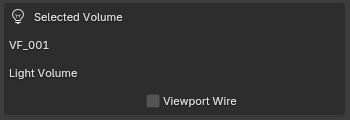
Selected Volume
Once a valid Volume Forge object is selected, the panel shows a Selected Volume box with the object name, the current mode (Light Volume or Real Fog), and the Viewport Wire toggle. Use this section to confirm that you are editing the correct object.
If no valid volume is selected, the panel only shows the Create area and a No Volume Selected message. If an object is selected but its expected material setup is missing, the panel shows Selected Object Not Ready.
Mask & Falloff
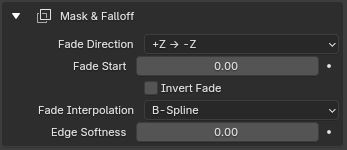
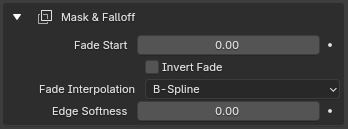
This section controls the internal fade and the overall mask of the volume.
- Fade Direction — Available on Cube-created objects. It defines the axis along which the internal fade travels through the volume.
- Fade Start — Controls where the visible fade of the volume ends.
- Invert Fade — Reverses the fade direction without changing the chosen axis.
- Fade Interpolation — Controls how soft or sharp the fade transition is between the visible side and the masked side of the volume.
- Edge Softness — Softens the falloff near the volume boundaries.
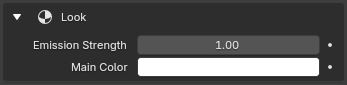
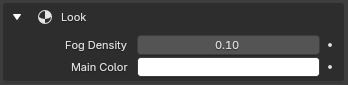
Look
This section controls the main visual response of the volume.
- Emission Strength — Light mode only. Controls how much light is emitted inside the volume. Increasing it makes the light volume read stronger and denser.
- Fog Density — Fog mode only. Controls the density of the localized fog volume.
- Main Color — The main visible color of the volume.
Noise
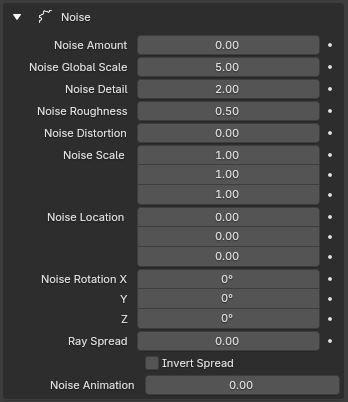
The Noise section shapes variation inside the volume and is essential for beams, broken-up shafts, and more organic fog.
- Noise Amount — Overall influence of the noise.
- Noise Global Scale — Main scale value of the Noise Texture itself.
- Noise Detail, Noise Roughness, Noise Distortion — Standard procedural noise refinements.
- Noise Scale — The mapping scale vector. Lowering the Z value is a key technique for stretching the noise along the volume length to produce longer god-ray style streaks.
- Noise Location — Moves the noise pattern in 3D space without moving the mesh.
- Noise Rotation — Rotates the noise pattern.
- Ray Spread — Opens or tightens the internal pattern along the A → B travel of the volume.
- Invert Spread — Reverses the direction of the spread effect.
- Noise Animation — Animates the W dimension of the noise. A value of 0 keeps it static. Positive and negative values move it in opposite directions.


Volume Shape
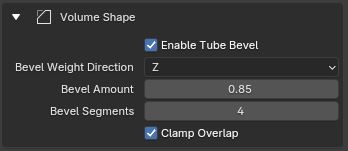
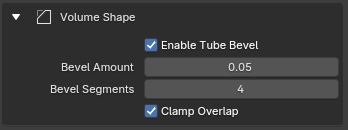
This section controls the tube-like rounding of the generated mesh.
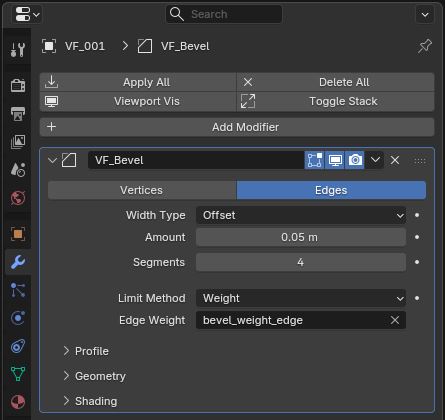
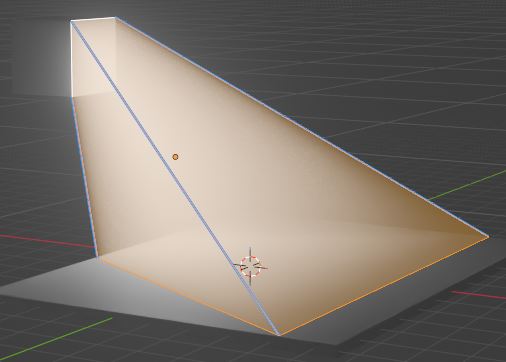
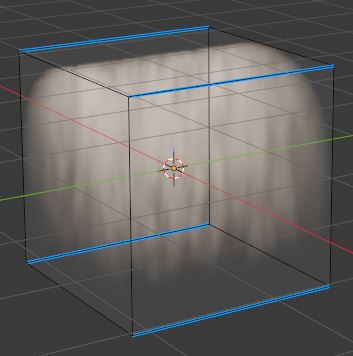
- Enable Tube Bevel — Activates a non-destructive Bevel modifier limited to the relevant edges.
- Bevel Weight Direction — Available on Cube-created objects. It changes which axis the bevel edge weighting follows.
- Bevel Amount — Width of the bevel.
- Bevel Segments — Number of segments used by the bevel.
- Clamp Overlap — Helps prevent problematic self-overlap when the bevel becomes too large.
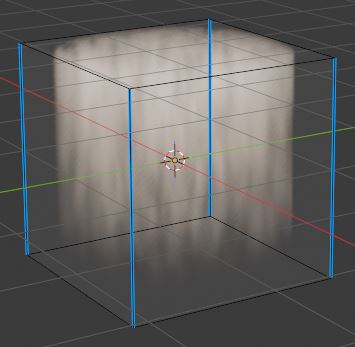
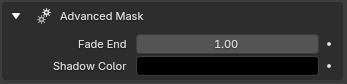
Advanced Mask
This section exposes the end of the fade and the darker side of the volume mask.
- Fade End — Controls where the fade reaches its end position.
- Shadow Color — The color used on the darker side of the volume mask.
Together with Fade Start, Main Color, and Invert Fade, this lets you shape how the volume fades from a cleaner visible side to a darker, more masked look.