Getting Started
Installation
Install the zip in Blender, enable the addon, and check where the panel appears. This page also explains what Volume Forge creates in the scene.
Install the addon
- Open Blender.
- Go to Edit → Preferences → Add-ons.
- Click Install… and select the addon zip file.
- Enable the addon after installation.
- Open the 3D View sidebar with N and locate the Volume Forge tab.
Where the panel appears
The addon lives in the 3D View sidebar. The panel title is Volume Forge.
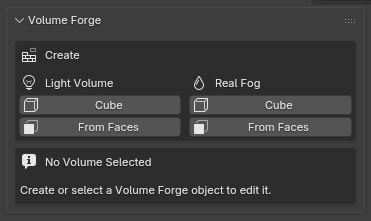
What gets created in the scene
- A dedicated collection named Volume Forge.
- A mesh object for the created volume.
- A unique material for that object, so each volume keeps its own settings.
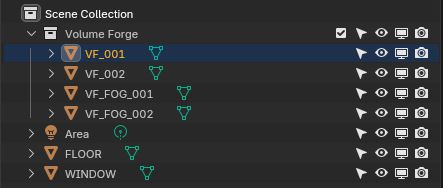
Important note for Cube creation
Both Cube buttons create the object at the current 3D Cursor position. If the result appears far away, check the cursor location first.